
Members and their roles
Bring someone into a workspace, give them a role, revoke or remove them, and what each role allows.
Checked in the application on September 5, 2026
The Members screen is the only place where someone is brought into, taken out of or requalified in a workspace. It touches nothing else: neither GitLab, nor the branches, nor the deployments. You reach it through the “Menu” button of a workspace bar, “Members…” entry, which only appears for managers and administrators.
Who can ManagerAdministrator
The screen is open to managers and administrators. Its actions are not: a manager does not touch an administrator, and cannot appoint one. It is the only difference between a developer and a manager: the developer does not see this screen.
Reading the table
| Column | What it shows |
|---|---|
| User | The first and last name. A revoked member has their name struck through; an invitation without an account shows an envelope and the address, there is no name to show. |
| The address, with “Verified” or “Not verified”, or “Invitation sent” for an address without an account. | |
| Role | Viewer, Product owner, Developer, Manager, Administrator. |
| Last activity | The last visit and the last sign-in. “Never” for an account that never signed in; a dash for an invitation without an account, there is nothing to measure. |
The search and three filters (status, role, last activity with “Active in the last 7, 30, 90 days” or “Never active”) narrow the list; “Reset” clears them. Sorting is by creation date, first and last name, or last activity. Everything lives in the URL: a shared link opens the same reading.
The three statuses
| Status | What it is | How you get in | How you get out |
|---|---|---|---|
| Invited | An address without an account, to which an email was sent. | “Invite…” with an address unknown to Deployer. | The person signing up, or removal. |
| Active | A member who accesses the workspace. | “Add…”, or “Invite…” an address that already has an account. | “Revoke…”. |
| Inactive | A former member, kept in the list. | “Revoke…”. | “Activate…”. |
Bringing someone in
The two header buttons, “Add…” and “Invite…”, open the same dialog; the one you clicked only decides the open tab. Same role to choose, two sources of recipients.
- Choose registered users
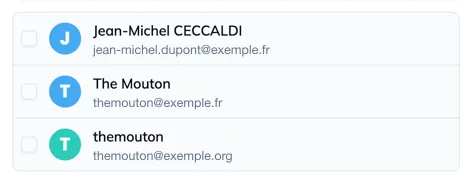
The “Registered users” tab lists the Deployer accounts that are not members yet, with a search. Tick as many as needed. They receive a notification email and can access the workspace right away.
- Or invite by email
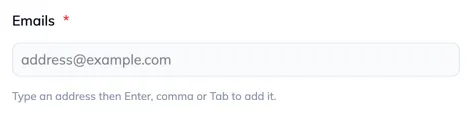
The “Email invitation” tab takes addresses as chips: Enter, comma or Tab validate the current address. An invalid address stays shown in red and blocks validation. An address that already has an account becomes an active member; an unknown address receives a “create your account” email and appears as “Invited”. Both tabs keep their selection; a counter on the inactive tab recalls what is waiting there.
- Choose the role
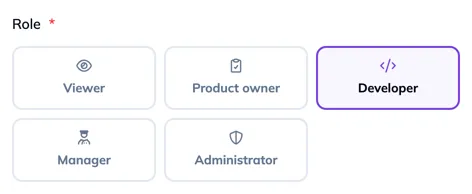
One role for the whole batch, “Developer” by default: the common case, and the narrowest of the roles that deploy. The right column says what the role allows and what it refuses. A manager does not see the “Administrator” card.
- Confirm
“Add N members” or “Invite N members”. Those who were already members are skipped, without error; the notification says so (“3 members added, 1 skipped”).
Acting on a member
The menu at the end of a row depends on the status and on your rights.
- Edit… opens the same two-column dialog, where only the role changes: neither the email, nor the status, nor the identity.
- Revoke…, on an active member: they lose access, stay in the list as “Inactive”, and can be reactivated.
- Activate…, on an inactive member.
- Remove… deletes the row. For an active member, the confirmation asks to retype their email: it is a current access that disappears. An invitation or an already inactive member are removed without it.
What each role allows
The table the dialog shows, capability by capability. Roles go from the narrowest to the widest, and each one adds to the previous.
| Capability | Viewer | Product owner | Developer | Manager | Administrator |
|---|---|---|---|---|---|
| View linked projects and tracked branches | yes | yes | yes | yes | yes |
| Validate the merge requests of an issue | no | yes | yes | yes | yes |
| Rebuild the assembled branch | no | yes | yes | yes | yes |
| Write and share the release notes | no | yes | yes | yes | yes |
| Set the release note validation convention | no | yes | yes | yes | yes |
| Deploy a version and create releases | no | no | yes | yes | yes |
| Carry a fix and merge its merge requests | no | no | yes | yes | yes |
| Run an environment action | no | no | yes | yes | yes |
| Invite and manage members | no | no | no | yes | yes |
| Configure GitLab, projects and branches | no | no | no | no | yes |
| Rename or delete the workspace | no | no | no | no | yes |
Two rows only appear where their module runs: validating merge requests follows the Features screen, rebuilding the assembled branch follows the Assembly module. In a workspace that has switched Features off, the product owner can no longer validate; the release notes remain.
Who can Installation administrator
Above the workspace roles, the installation administrator manages the accounts themselves (“Administration” menu, “Users…” entry: global role, deletion, address validation), sees every workspace and can enter any of them as an administrator, without an invitation. That is the recourse when a workspace no longer has a reachable administrator.