Release notes
The notes computed from the commits, their facets and degraded states, then the written note, by hand or assisted.
Checked in the application on September 5, 2026
Release notes answer a single question: what is there between these two points? Deployer computes them from GitLab, project by project, by comparing the commits between two deployments, then groups the commits by issue. The screen has two tabs: Details, the computed notes, verifiable, which are the reference; and Written note, the document drawn from them to be shared, written by hand or with the assistance of a model.
Who can ViewerProduct ownerDeveloperManagerAdministrator
Everyone reads the computed notes and the written note. Writing, saving or resetting the written note, and setting the validation convention, require the product owner role at least.
Two readings, one screen
The screen never opens from the navigation: it only exists bounded on a target, and is reached from a row of the Versions screen or from a target’s panel on the Deployments screen. While it is open, a chip on the right of the tab row carries its title, with a cross to close it; the header arrow does the same.
| Reading | The question | The bounds | Does it move |
|---|---|---|---|
| Release notes | What went into this version? | Two deployments: the previous one and this one. | No, never: two fixed points. |
| Upcoming changes | What is waiting to go to this environment? | The running deployment and an upper bound: the chosen version, the chosen source branch, or the main branch. | Yes, on every merge: the freshness is shown, “Computed on”. |
The header says what the notes compute against (1.2.0 → 1.2.3, or 2.14.0 → master): it is the only thing that tells notes bounded on a version from notes bounded on the main branch. The screen’s address carries everything that identifies the computation: a colleague who receives it sees the same notes, provided they are a member of the workspace. For someone outside, you send an export or the written note, not a link.
Reading the computed notes
Three levels, from the most general to the finest:
- The board, the GitLab project carrying the tickets, not the code’s. A team often centralises its issues in a ticket repository while the code lives in three others; grouping by code repository would split each ticket into three entries.
- The issue, the unit of meaning: the reference (link to GitLab), the title, the state, the labels with their GitLab colours, who created it, and the number of commits referencing it. An issue still open whose code has shipped is not “incomplete”: it is in the version, the ticket awaits a validation.
- The commits, folded: the proof, not the point. Each commit carries its repository of origin, and that is where you see a ticket crossed three repositories.
At the top of the notes, a count of repositories read (“16 repositories read”, or “14 read · 1 truncated · 1 unreadable”), with the detail per repository on hover.
What incomplete notes say about themselves
Notes that lie by omission make you lose trust in all the others. Every degraded case is therefore visible.
| What you see | What it means | What to do |
|---|---|---|
| “These notes are incomplete”, at the top of the list, with named projects | A repository could not be read (missing branch or tag, GitLab outage), or GitLab truncated its list of commits. “This project changed nothing” and “this project could not be read” are not the same thing. | Read the other projects, which stay exact. Check the named repository in GitLab before signing off a production rollout. |
| Unresolved references | The issue no longer exists, the reference is misspelt in a commit, or the workspace token cannot see the board. The issue stays shown with its raw reference and its commits. | A massive “issue not accessible” signals a token with rights too narrow, to fix in the configuration. An isolated “issue not found” is a typo, which will not be fixed. |
| Commits without an issue | The commits no reference claims, at the foot of the notes, foldable but never absent. | This is what makes the notes verifiable: do 12 issues cover 40 commits or 400? A growing section says a team stopped referencing its tickets. |
| Unreported fixes, in red | Commits present on the environment’s branch and absent from its source: a fix applied on prod and never carried back to the main branch. It will be lost at the next deployment. | Carry the fix back. The author’s name is there to know whom to ask. Branch mode and upcoming changes only. |
| “No change between these two points.” | Two consecutive deployments carry the same version: redeployment after an incident, rollback. The notes are legitimately empty. | Nothing. Not to be confused with a filter that returns nothing, which offers a reset. |
Filtering without changing what the notes assert
The same facet rail as Features, on the left: Content (issues, unresolved references, commits without an issue, unreported fixes), Boards, issue State, Author, Assignee, GitLab labels (OR within a scope, AND between scopes, as in GitLab) and Code repository. That last axis is specific to this screen: “what moved in api in this version?”. An issue is kept as soon as one of its commits comes from the checked repository, and stays shown whole.
The validation convention
Who can Product ownerDeveloperManagerAdministrator
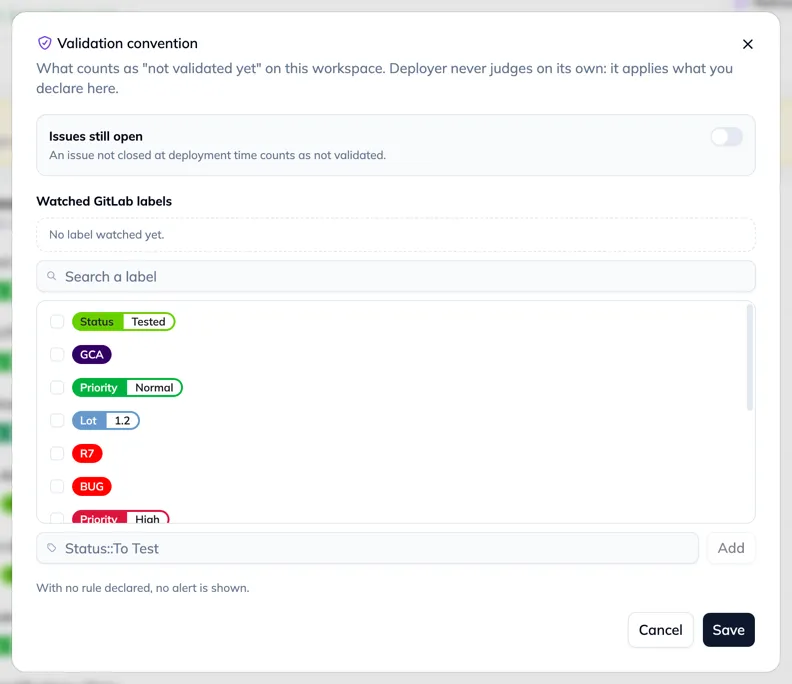
A team often has a rule: an issue does not ship while it carries Status::To Test, or while it is open. Deployer does not guess it: it is disarmed by default, and is set from the shield button of the header, “Validation convention”, by those who know their team’s rule. It is a workspace convention, not a personal preference: two people cannot read two truths about the same delivery.
- Set the convention
Tick the watched GitLab labels among those of the open notes, or type a missing name; arm or not the alert on issues still open. Already watched labels stay listed even when absent from the notes, so they can be removed.
- Read the alert
Armed, the convention marks each issue concerned with an amber edge, adds a “N to validate” badge on its board header, and puts a banner at the top of the list: “5 issues not validated yet in what is left to ship” on upcoming changes, “2 issues shipped without being validated” on a delivered version. “Show only those” ticks the “To validate” axis of the rail. The banner recalls the rule next to its verdict.

Export and refresh
“Export” offers Markdown or Excel, generated by the server, always on the complete notes. “Copy” puts the markdown in the clipboard. “Refresh” starts the computation again, through the waiting screen: notes cost dozens of GitLab calls, several seconds on a busy workspace, and they are never re-read on their own. Delivered release notes are kept in memory for an hour on the server: the second opening is instant, the normal case of a shared link.
The written note
Who can Product ownerDeveloperManagerAdministrator
The computed notes are a computation, immutable and verifiable. The written note is a document: what you say about them, to a product manager, to a customer, in a production rollout ticket. It is saved, reviewed, and reopens without touching GitLab. It never replaces the computed notes, which stay in the Details tab and remain what the exports output.
The tab says its state without being opened: nothing, a green mark when a reviewed note exists, a full mark when a take awaits a decision. The document exists in each language separately, and the language bar at the top says which one you are looking at.
Writing by hand
- Start from the computed text
While nothing is saved, the tab shows the computed markdown, reduced to the issue titles (no commits, paths or authors), marked “Raw generated text: not reviewed yet”.

- Edit
“Edit” opens a markdown editor, with the rendering beside it. The markdown is the deliverable: what is copied is exactly what is typed. “Save” keeps the text, with the review date; “Reset” deletes the text, behind a confirmation, in the displayed language only.

- Copy or download
“Copy” and “Download” (a
.mdfile named after the bounds) are in the screen footer, and follow the active tab: on Details they output the computed notes, on Written note the reviewed text.
Writing with model assistance
When the workspace administrator has set up a connection to an artificial intelligence provider (Configuration, “Artificial intelligence” section: a provider, a key, a model, testable without consuming anything), the “Assisted writing” column opens on the right of the document. Without a connection, it sleeps and says so; the hand-written note stays whole.
You write no prompt: you compose axes, you read, you tweak.
- Compose the axes and rewrite
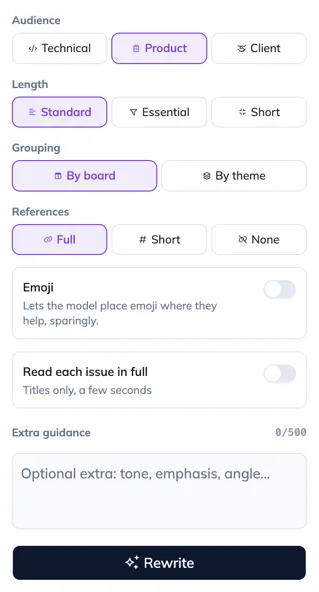
Audience (technical, product, client), length (standard or short, which means fewer entries, not shorter lines), grouping (by board or by theme), references (full, short, none), emoji, and free guidance of a sentence or two. “Rewrite” produces a take in a few seconds; the progress says its phase. Nothing is saved: the previous note is untouched.
- Tweak
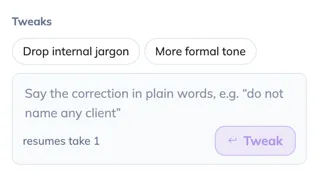
A take is almost never right the first time. Tweaks carry over the displayed text instead of starting again from the tickets: shorter, less technical, group by theme, drop internal jargon, more formal tone, or a sentence of your own (“do not translate board”). The takes of the session are kept in a thread, and you can go back to one of them as long as you do not leave the screen.
- Save or discard
A pending take only offers its decision: “Save” makes it the written note the team sees; “Discard” changes nothing. The saved note keeps the trace of its generation: the model, the axes, the tokens consumed. Later correcting that text by hand makes it a hand-written text.

- Carry the note over to the other language
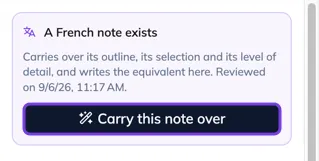
A note reviewed in French, of which you want the English one: when switching to a blank language, a card offers “Carry this note over”. It is not a word-for-word translation: the decisions (what is kept, the plan, the tone) carry over, and the note is written in the target language. The card never offers itself the other way round on a note already written for itself.