
Deploy
Read the environment grid, open a target’s detail, deploy a branch or roll out a version, run an environment action.
Checked in the application on September 5, 2026
The Deployments screen is the entry point of a workspace in service. It answers one question: which version runs where, and what can I promote. One tile per environment, in promotion order; on the right, the project-by-project detail of the selected tile.
Who can ViewerProduct ownerDeveloperManagerAdministrator
Everyone reads the whole screen. The action buttons (deploy, create a version, run a job, run an action) only appear for developers, managers and administrators; for the other roles they are removed, not greyed out.
Reading the grid
Each tile is a ref: a tracked branch, or an environment. They read in the order of the promotion chain, and the first one is selected on opening, always the same, so the screen opens at the same place every morning.
What a tile shows
| Zone | What it says |
|---|---|
| Title | The branch name (branch mode) or the environment name (tag mode), with the “default” badge on the reference branch. |
| Version | The running number, with the date and the person who deployed. “Never deployed” if the target never received a version. |
| Badges | “partial” in amber when at least one project did not receive the version; “failed” in red when no project started. |
| Pipeline aggregate | A count, never a single status: “1 failed · 2 awaiting action · 1 running · 3 without pipeline · 12 up to date”. Only non-zero numbers are shown. |
| Action | “Deploy” on a target, “Create a version” on the main branch in tag mode. |
The tile’s dot takes the colour of the worst case: failed, then awaiting action, then running, then without pipeline, then up to date. “Without pipeline” is not an error: a tracked branch may not exist in every repository, that is everyday life for a new project.
When a target cannot be deployed
The “Deploy” button is greyed out, with a tooltip saying why:
- In branch mode, the environment has no allowed source branch. Set it in Configure a workspace.
- In tag mode, the workspace has released no version: first “Create a version” from the main branch.
The alert above the grid
As soon as an environment is degraded, a line above the grid names it: “2 environments need attention”, with one link per environment. Red if there is a failure, amber if there are only jobs awaiting action. Clicking an entry selects the tile and scrolls it into view in the grid.
Grouping and filtering by labels
On a workspace with fifteen targets, the grid reads poorly: three customers and five stages interleave in promotion order. The environment labels provide the axes to reorganise it. The two controls only appear if at least one environment carries a label.
- Group
“Group” reorganises the grid into bands, one per value of the chosen axis, with the count of each band. Nothing is hidden: targets without a label form a last “Unlabelled” band. The choice is remembered per workspace.

- Filter
“Filter” keeps only the checked targets: OR within an axis, AND between axes. The number of hidden targets shows under the title, and removable chips repeat each value. The filter lives in the URL, so in the link you share, and is not remembered.

The detail panel
Selecting a tile opens the detail on the right: one card per linked project, in the projects’ display order. On a small screen, the panel becomes a drawer over the grid.
The header
The target’s name, the number of linked projects, the freshness (“refreshed 4s ago”), the environment labels as clickable chips (clicking a chip filters the grid on that value), then the reading buttons and the environment actions:
- “Release notes” opens what went into the running version, computed between the last two deployments. Absent until the target has two deployments.
- “Upcoming changes” opens what is waiting to go there. Absent on a never-deployed target.
- The actions: the manual buttons declared in the environment’s configuration, see below.
One card per project
| Line | Content |
|---|---|
| 1 | The project name, the pipeline status badge. The name leads to the project in GitLab. |
| 2 | The full path of the repository. |
| 3 | The pipeline number (link to the pipeline), the short commit (link to the commit), the duration, the author. |
| 4 | The pipeline stages, one chip per stage with the aggregated state of its jobs. |
| 5 | “Run” when the pipeline awaits a manual job, and the link to GitLab. |
Three cases stand apart: the normal line; “No pipeline on this ref”, greyed out, when the branch does not exist in this repository (a normal case); and a GitLab error on this project only, with the raw message below, the other projects staying readable.
The jobs of a stage
- Open a stage
Hovering a stage chip shows “deploy · 5 jobs · 3 succeeded, 2 pending”. Clicking the chip unfolds the list of jobs under the card; clicking again folds it, clicking another chip switches. A downstream pipeline unfolds inside the card of the job that triggered it.

- Run or retry
Each job carries a single action: “Run” if it awaits a hand, “Retry” if it can be replayed. GitLab may still refuse; the refusal shows on return and is not kept. A retried job is a new job, which replaces the line.

Partial or failed deployment
When the running version is partial, the projects that did not receive it carry an amber edge and the mention “Version not deployed on this project”, followed by GitLab’s raw error message. It is neither translated nor rephrased: it names a GitLab setting, for instance the right to set pipeline variables, and it is the exact term to look for in the GitLab interface. A fully failed deployment adds a red banner at the top of the panel: nothing was rolled out.
Refresh
The selected ref is re-read every 5 seconds while one of its pipelines runs, every 30 seconds otherwise. The overview of every tile is only re-read on opening and on the “Refresh the overview” button: refreshing it in a loop would cost dozens of GitLab calls per minute. The freshness shown comes from the server clock.
Deploy
Who can DeveloperManagerAdministrator
The “Deploy” button of a target tile opens the dialog. The target is the tile’s, read-only: you do not choose a target here.
- Choose the source branch
The list is restricted to the target’s allowed source branches; the server refuses the rest. The “What this branch ships” link, under the selector, opens in a new tab the upcoming changes bounded on the chosen source.

- Name the version
The number is suggested from this target’s last version, and stays free. Each target has its own sequence:
prod-1.2.3andqal-1.5.0are independent, comparing two tiles makes no sense.
- Deploy
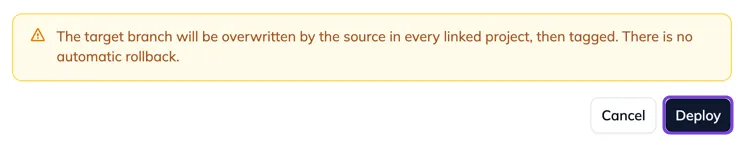
The button starts the deployment on every linked project. If the source branch is missing in some projects, the refusal lists them and nothing is deployed. A version already fully deployed is refused; a partial deployment replayed with the same number resumes where it stopped.
- Choose the version
The released versions, most recent first; the first deployable one is preselected. A partial version (its tag is missing in one project) is marked “partial: not deployable”. Redeploying the current version or going back to an earlier one is possible, it is not an error.

- Read what the version ships
The link under the selector opens, in a new tab, the notes of the changes between the running version and the selected one. This is where the question arises: taking pre-production from 1.2.0 to 1.2.3, what does it bring?

- Roll out
If the tag’s CI failed on some projects, the refusal names them and a “Roll out anyway” button appears, only after that specific refusal. The other refusals (missing tag, incomplete version) cannot be bypassed.

Create a version
Who can DeveloperManagerAdministrator
The version being built
Between “Create a version” and “Deploy”, a “Version being built” card appears in the grid, on the main branch side: the number, the aggregate of the CI pipelines, and a verdict: “Building images.”, “Ready to deploy.”, “CI failed on frontend.” or “No CI triggered on this tag.” (a repository without a CI rule on tags will never produce one: this is not a wait). The card disappears when the version is deployed, not when the CI finishes. Clicking the card opens the panel with the pipelines per project. It has no “Deploy” button: the target decides what it receives.
Maintenance branches
- Active branches are listed: the branch name, the version it derives from, the environments where that version still runs. The tag button opens “Create a version” with the branch imposed and the patch number suggested (
1.0.0becomes1.0.1). The version tags the branch where it exists, and the original tag elsewhere: the tag is complete on every project, therefore deployable. - Tagging does not deploy. The version appears in the Versions screen and becomes selectable in the “Deploy” dialog of the targets.
- Obsolete branches are counted, not listed: a branch is obsolete when its version is no longer deployed anywhere, not when a more recent version exists. “Clean up”, administrators only, opens a dialog listing what will disappear, branch by branch and project by project, before deleting.
- Clicking a row opens the panel with the state of the branch’s pipelines.
Environment actions
Who can DeveloperManagerAdministrator
The manual buttons declared in the environment configuration show in the panel header, above the project cards: rebuild an index, flush a cache, restart a service, ahead of a production window.
- Run
Clicking a button opens a confirmation that recalls the action’s description and its last run (“Last run: yesterday 15:04, succeeded”). There is no lock against a double run: that line is the only information that lets you decide.
- Read the answer
The target answers within seconds: succeeded, or failed with its code. “No response” after ten seconds is not a failure: the operation may have started, do not restart three hours of computation for nothing. “Blocked” means nothing left, the URL being refused: to fix in the configuration.
The history of every run is read in the History menu, “Actions” entry: who ran what, when, and what the target answered.
The connection banner
When the workspace’s GitLab token is refused, expired or the instance is unreachable, a red banner tops every screen of the workspace, with the thing to do: provide a new token, widen its rights, check the URL, or wait for a quota to end. The administrator finds “Test the connection” there. A token expiring soon gives an amber banner, visible to every role: a manager must be able to anticipate it without access to the configuration.