Carry a hotfix
From an issue or a branch to hotfix merge requests on every project, then their tracking, their merge and the history.
Checked in the application on September 5, 2026
A bug is in production, the fix already exists on the main branch, and it has to be carried into six repositories without opening twelve GitLab tabs. That is the Hotfix screen: you give an issue or a branch, Deployer finds the commits, opens a branch and a merge request per project touched, then you track and merge from the same place.
Deployer creates no fix: it carries a fix that exists. Nor does it resolve conflicts: a conflicting cherry-pick is settled in GitLab.
Who can DeveloperManagerAdministrator
Everyone can resolve an issue, read the commits and follow the state of the merge requests. Creating a fix and merging require the developer role at least.
Saying what you carry
A single field, “Issue or branch”, which accepts either. An issue reference contains a #; a branch name never does.
- By an issue
Type a ticket number (
3865) or a few words of its title: the screen suggests the issues found in the workspace’s declared sources, and picking a suggestion starts the resolution. You can also paste the full reference,group/project#3865. Without a declared issue source there is no suggestion; the full reference always works (see Issue sources).
- By a branch
Type the branch name, for instance
hotfix/BUG-343. Deployer looks for it in every linked project: those that have it are checked, with their last commit as a check. The whole branch is then merged, there is no commit to tick. An “Issue: optional” field lets you attach a ticket for tracking.
- By manual selection
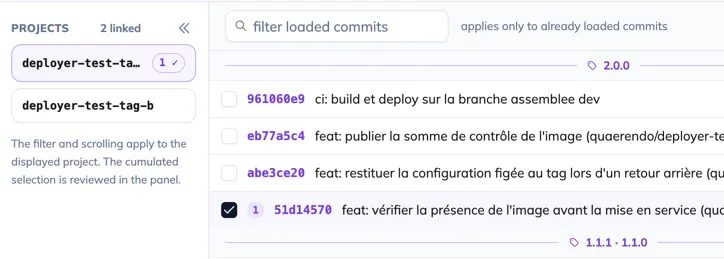
“Manual selection” is available at all times, not only after a failure: choose a source, a project in the rail, and tick commits in its history. A text filter applies to the commits already loaded, and says so. Interleaved markers locate the released versions: “1.0.0 · in service on Production”, so as not to carry a fix that is already there.
Reading the examined scope
After resolution, a line says what was searched and where: “4 commits found in 2 projects, via the merge requests linked to the issue”, or “200 latest commits of master, 12 projects examined”. Without it, “no commit found” would be ambiguous: no fix, or not enough searching? An empty result offers to switch to manual selection.
Each project carries a badge: “commits found”, “no commit” (examined, nothing found), “not examined” (the history was not read, no conclusion), or a GitLab error with its raw message, the other projects staying usable. The issue’s merge requests that do not target the main branch are counted separately: they are often the ones Deployer created itself.
Composing the fix
The right panel shows what will go, and nothing is written before its button.
- Check the selection and the order
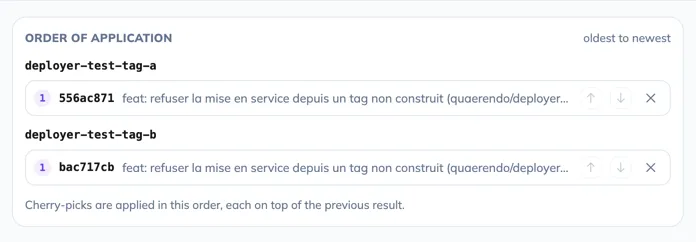
Each kept commit carries a rank. Cherry-picks apply from the oldest to the newest, each on the result of the previous one; the order can be changed, for the case where one commit fixes another. The cap is 50 commits per project, announced from 40.
- Name the branch
The name is pre-filled from the workspace pattern,
hotfix/3865by default. Without an issue, the fallback set in the configuration applies: three random words, or the title of the first commit. With several targets, each target receives a suffixed name, editable one by one.
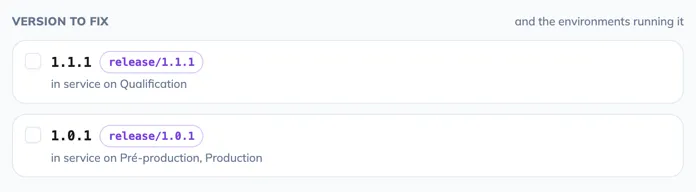
- Choose the targets
See below, the shape depends on the mode.
- Create
“Create the fix” opens the branch and one merge request per project touched, target by target in promotion order. Progress is visible; a failure on one target does not cancel the others. With a single target, the screen switches to its tracking; with several, it stays on the result, which lists each target with its “See tracking” button.
What a hotfix merge request does not do
- It is opened by the workspace token’s account, unless you have linked your GitLab account (“My GitLab account” menu): it then carries your name and your rights.
- Nobody is notified by Deployer: GitLab notifies according to your rules.
- The merge request back to the main branch is not created: it is yours to make, and Deployer does not see it.
Tracking and merging
At the top of the screen, a folded band lists the five most recent fixes, pending ones first, with the exact count of pending fixes. Clicking a row opens its tracking in the panel: the projects, their merge request (link to GitLab), their state, the failures with the raw message.
- Read the state
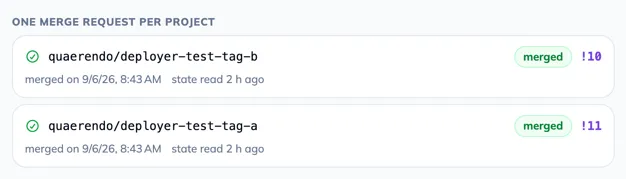
Each project is “opened”, “merged”, “closed” or “creation failed” (a cherry-pick conflict, the normal failure case, to resolve in GitLab). The state is a cache, re-read when the fix is opened and on demand, never in a loop: the read date is shown.
- Merge
“Merge into prod” merges every still-open merge request of this fix on this target. GitLab may refuse some: while a merge request’s pipeline runs, it is not a failure, try again in a few minutes; a conflict is resolved by hand in GitLab. What is merged stays merged; replaying only touches the rest.
When the fix carries an issue, the panel also shows the state per target: “#3865, test merged, prod pending”. Only the targets Deployer aimed at appear: the merge request back to the main branch, opened by hand, is invisible to it.
The history: the Fixes screen
The band of the Hotfix screen only shows the last five. Beyond that, the Fixes screen, in the History menu, lists everything, from the most recent to the oldest, with a single filter: “All” or “In progress” (at least one merge request still open).
A row carries the issue reference (or the title alone for an emergency fix), the created branch and the target, the fixed version in tag mode, the progress (“3 merged · 1 pending · 1 failed”), who and when, and the freshness of the state.
- Open a fix
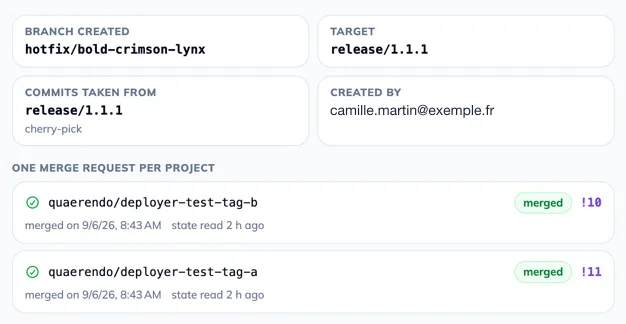
“Open” re-reads the state from GitLab, then shows the facts (created branch, target, commits taken from, created by, fixed version), one card per project, the merge refusals, and in tag mode the maintenance branch panel pointing to Deployments. “Merge” is there too, for the merge requests still open.
- Remove from tracking
Offered only on a fix that produced no merge request (creation failed in every project). It removes the tracking row, not the branches nor the merge requests in GitLab.